
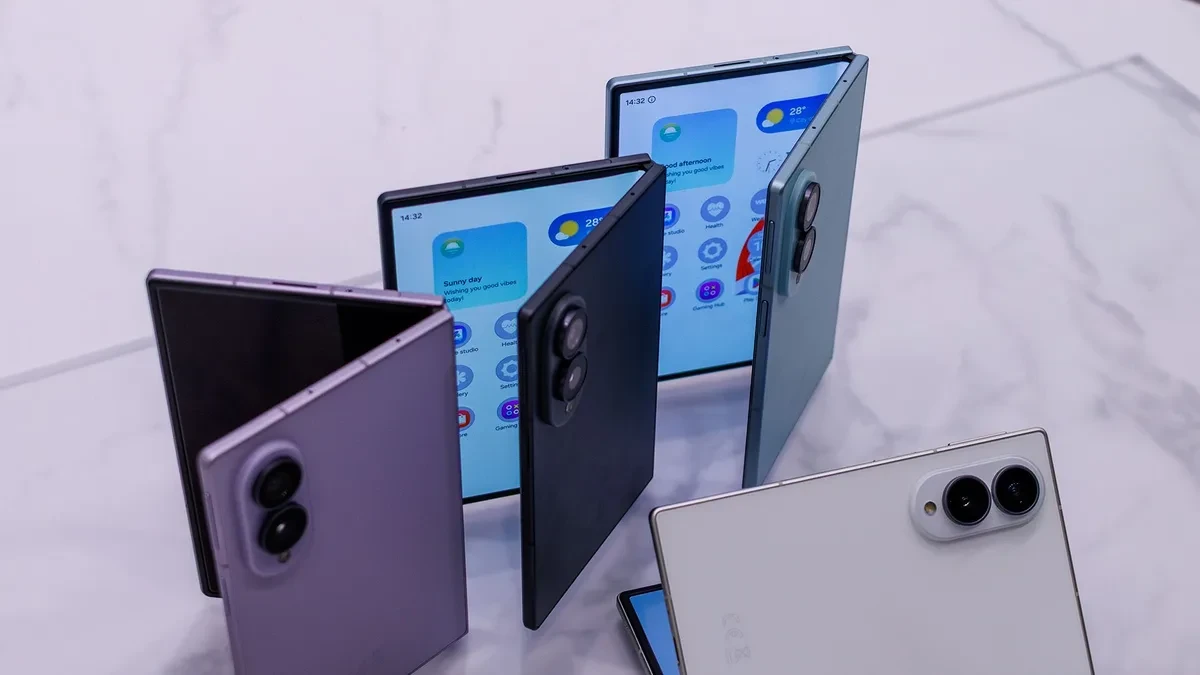
Carrying a foldable smartphone like the Samsung Galaxy Z Fold8 and running a single app at a time is like driving a supercar strictly in a parking lot. The expansive 4:3 inner display offers enough screen real estate to rival compact tablets, yet many users treat it merely as a larger window for scrolling through single feeds. Running One UI 9, the device contains built-in desktop-grade productivity tools that transform the hardware into a true multi-tasking hub.
While the folded cover screen handles quick replies and one-handed navigation effortlessly, unfolding the main panel opens up entirely new workflow possibilities. With flexible app split configurations, rapid gestures, and full desktop output through Samsung DeX, mastering these features allows you to ditch carrying a secondary laptop or tablet for work trips and quick edits.
Unlocking Hidden Multi-Window Gestures
Many of the most powerful multitasking shortcuts on the Galaxy Z Fold8 are disabled by default. To unlock them, open Settings, navigate to Advanced Features, and select the Multi Window menu. Toggling on these options enables intuitive touch shortcuts that eliminate the need to navigate through complex menus.
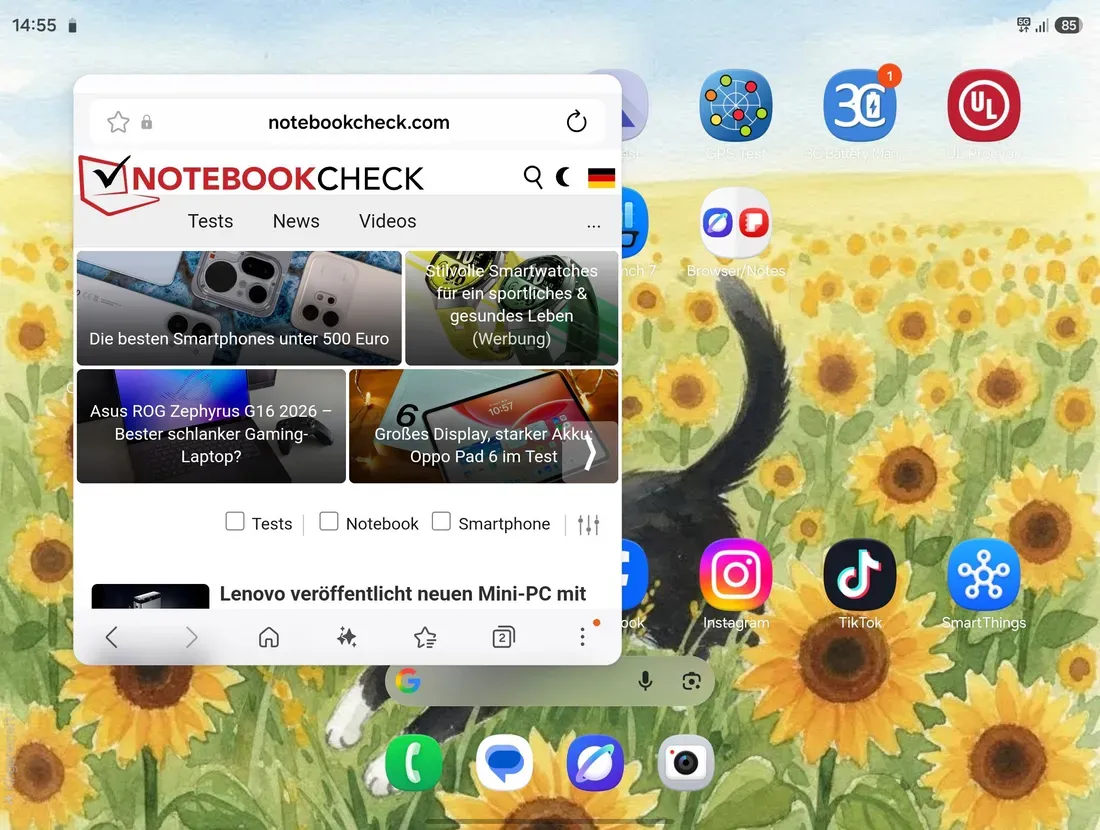
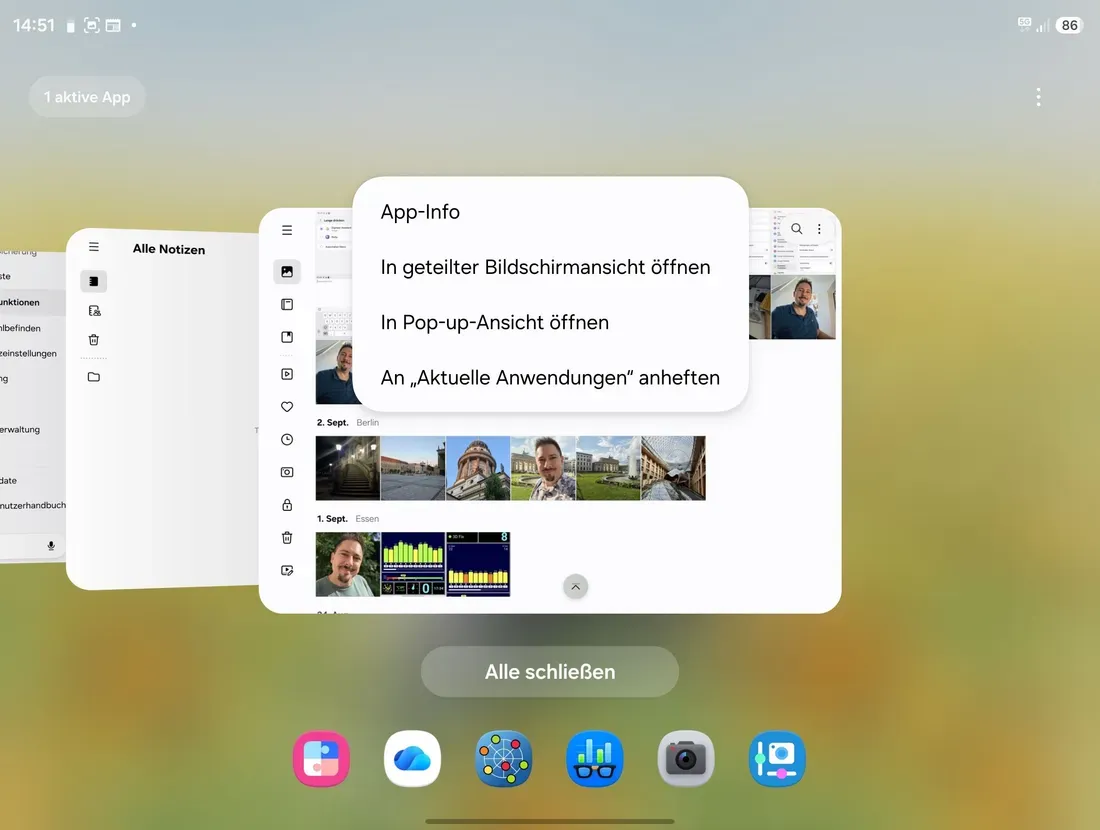
Once enabled, a simple two-finger swipe inward from any edge immediately triggers split-screen mode, letting you place two apps side-by-side in seconds. Browsing research on one half while taking notes on the other, or cross-referencing trip itineraries in Google Maps while texting in Messages, becomes instantaneous. Furthermore, swiping diagonally downward from the upper-right corner instantly shrinks any full-screen app into a floating, resizable pop-up window, perfect for quick calculations or monitoring stock tickers without losing your main workspace.
Asymmetrical Layouts, App Pairs, and Taskbar Speed
One UI 9 goes beyond standard side-by-side windows by allowing up to three apps to run simultaneously on the inner main display. Users can choose classic equal-sized vertical columns or experiment with asymmetrical arrangements. For instance, you can dedicate two-thirds of the screen to a broad web browser or video stream, leaving the remaining narrow column divided vertically between Slack chats and email notifications.
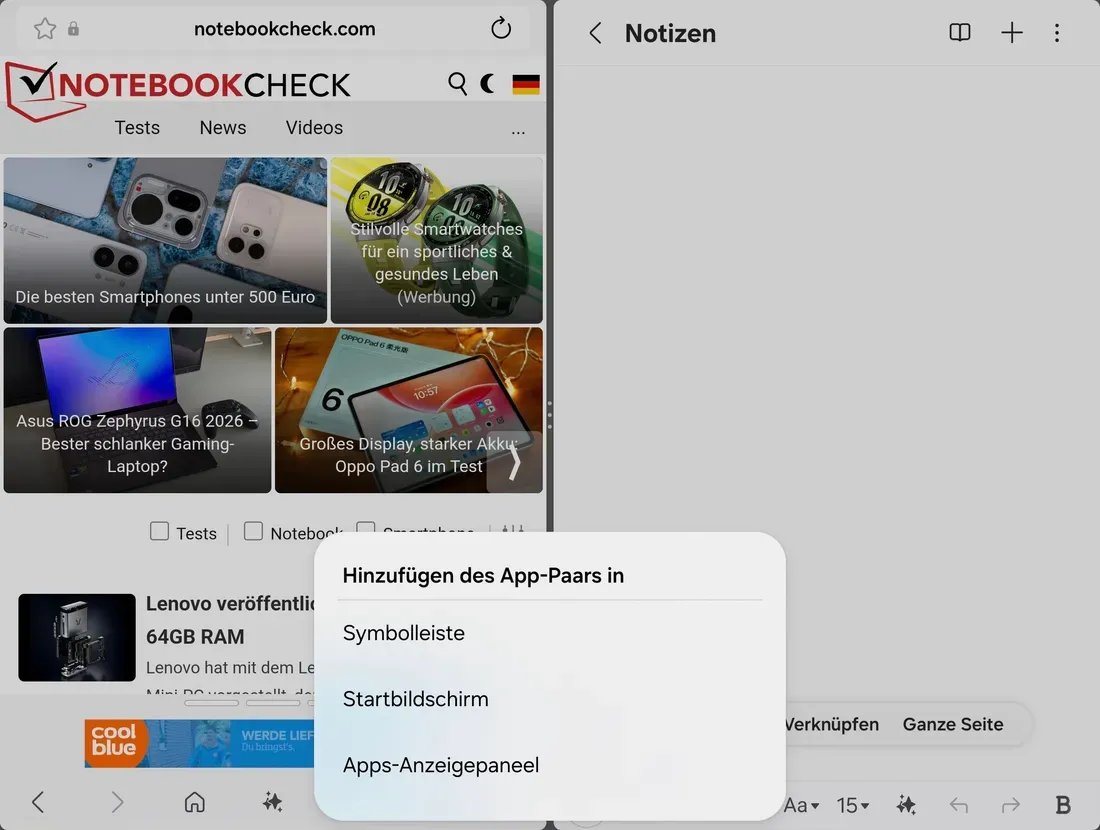
To manage these complex arrangements without manual setup every time, Samsung provides two crucial efficiency tools: the persistent Taskbar and Edge Panel. Frequently paired applications can be pinned to either dock and dragged straight into position on screen. Better yet, once you settle on a three-app configuration that fits your daily workflow, tap the center divider to save the layout as an App Pair. Stored on your home screen or Edge Panel, a single tap launches all three apps simultaneously in your exact saved layout.
Desktop Computing Power with Samsung DeX
For heavy productivity demands, the Galaxy Z Fold8 extends far beyond its physical body thanks to Samsung DeX. Connecting the foldable to an external display, projector, or TV transforms the mobile interface into a full desktop workstation complete with floating, overlapping windows, a traditional taskbar, and native mouse and keyboard support.
Crucially, DeX operates independently from the handheld phone screen. You can present a full slide deck or review complex spreadsheets on an external monitor while using the unfolded foldable in your hand as a dedicated touchpad, digital notepad, or discrete communication hub. For power users looking to lighten their daily gear bag, optimizing these built-in software tools allows the Galaxy Z Fold8, priced around $1,899, to deliver on the true promise of convertible mobile hardware.